Saturday, August 25, 2012

Edge Smoothing (Photoshop)

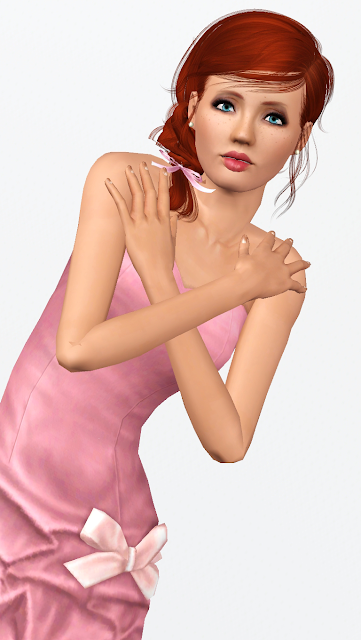
This tutorial shows how to smooth rough edges in Photoshop. Please note, this only works on pictures cut from the background (in this case, Sims). Here is the photo that I am going to start with (please ignore the crappy cut-out of the sim).


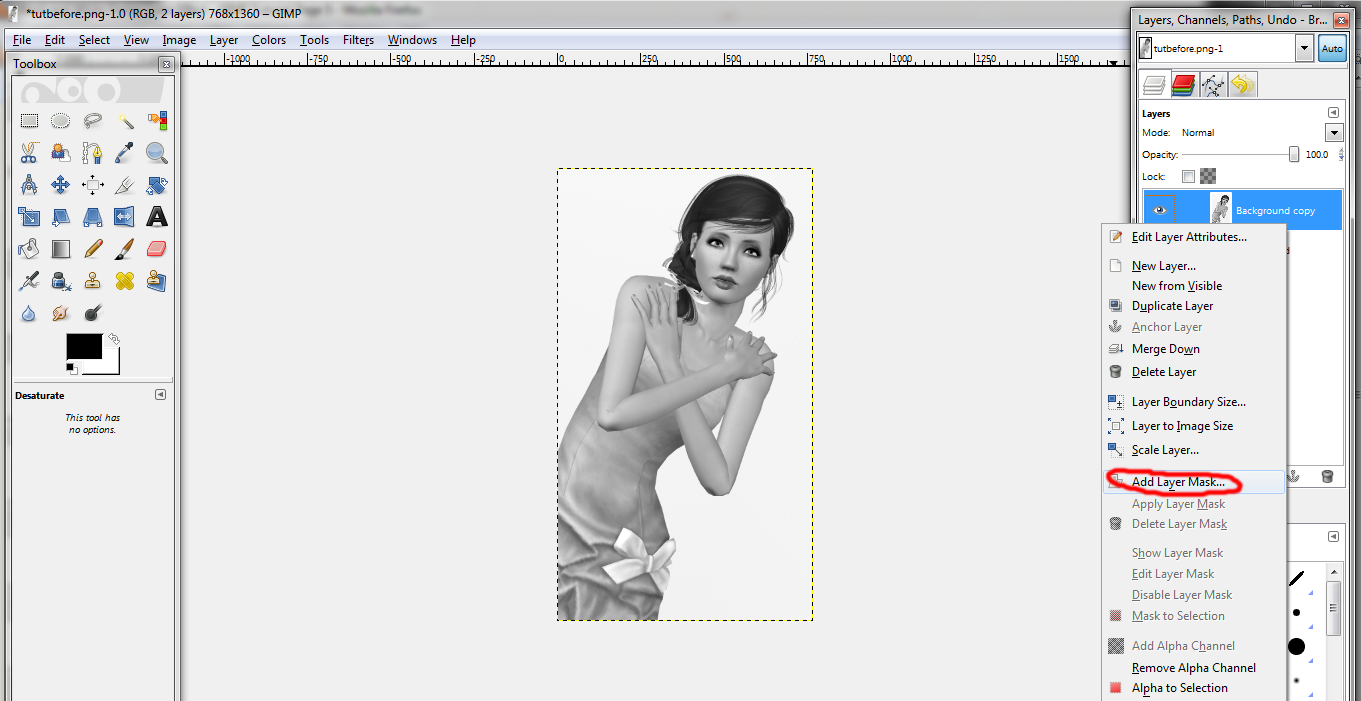
For this tutorial, we are going to use a layer mask to smooth the edges. Shift-click your cut-out layer so that the sim is selected. Now, click the small icon at the bottom of the layers panel that looks like a white circle in a gray rectangle (circled below). Your layer mask will be added to that layer and it should look like silhouette of your sim on a black background.


With the layer mask selected, go to Filter>Blur>Gaussian Blur and set the radius to around 3. Click okay.


Now your sim in the layer mask should be slightly blurry. With that layer mask still selected, go to Image>Adjustments>Levels. Play around with the levels by moving the outer arrows towards the middle arrow until the edges on your sim look smoother. You can also move the middle arrow around to get the desired effect. My settings are shown below. The values for the arrows read 145, 0.53 and 227. Your photo will change while you adjust the levels so you can see the result before clicking Ok.
As you see from the photo below, the edge on my sim's shoulder is a lot smoother than it was before (I added a black background to it so I can see the result better).


This is just one method you can use to smooth rough edges. You could also use an eraser and carefully go over the edges. This technique is tedious and time-consuming and it helps to have a steady hand. Another method that could be used is to use the smudge tool and carefully run it over the edges (this works best for images not cut from the background).

So that is it. If you need more explaination or have any questions, feel free to ask.

Wednesday, August 22, 2012

Eye Makeup (Photoshop)

This tutorial shows my way of "drawing" eye makeup. Here is the photo that I am starting out with.


Next, I'm choosing an upper eyelash brush (which can be found here). I'm leaving it at the default size for now since I'm going to resize it to fit the eye in a minute.


On a new layer, click to stamp the brush on the photo (I did it twice for a darker color). As you can see, it is a tad big for the eye.


To fix this, I am going to go Edit>Transform>Free Transform to adjust the size of the brush so that it fits the eye well. To keep it the same proportions, hold shift while changing the size. Hold control and click on one of the boxes around the brush to distort the shape for a more precise fit.


Do the same for the other eye. I normally duplicate the first layer then flip it to fit the other eye instead of using another brush.


Now I'm going to paint a dark area over the area where the lash meets the eye to make it blend in better.


After drawing the lines (which are curved along the edge of the eyes), I go to the "Filter" menu and choose "Blur" then "Gaussian Blur".  I set the blur radius to 4.2 since I don't want it to be really blurred and click "Ok". Move that layer under the eyelash layer.


Now I'm going to do pretty much the same thing with the eyeshadow. I chose a pink color and brushed the color over the eyelids. Make sure it is on a new layer. Currently, the layer is above all the others so that we can see what we're doing.


Use the Gaussian blur again but use a larger radius so that it is blurred a little more. The amount of blur is up to you. For mine I used 11.1 pixels for the radius.


When you're done adjusting the blur, move the layer underneath the other makeup layers. Choose the "Multiply" blending mode and lower the opacity so that the makeup isn't so bold. I chose to lower it to 67%. You could use other blending modes if you'd like. Sometimes certain colors look better with different modes like "Overlay".


Add lower lashes if you wish using the same method and add the black behind it as you did before do give it a more blurred look.


This step is something I like to do but it is completely optional. I hid all the makeup layers to make it easier to see. I took a small, soft brush (about 10 px) and drew a dark line along the top of the eye ball. The red circles in the photo below show where I added the lines. Sorry it is hard to distinguish from the makeup already on the picture.


Use the Gaussian blur again but don't blur too much. I used about 4 px for the blur radius. This is what it looks like afterward. I use this to give the eye a more rounded look.


I did the same with the lower lid. (The picture below shows it before blurring.)


This is what it looks like with the rest of the makeup showing. Now you're done!


This is my final product after some color adjustments and shading.


Before:


After:


Saturday, July 28, 2012

Color Splash (GIMP)

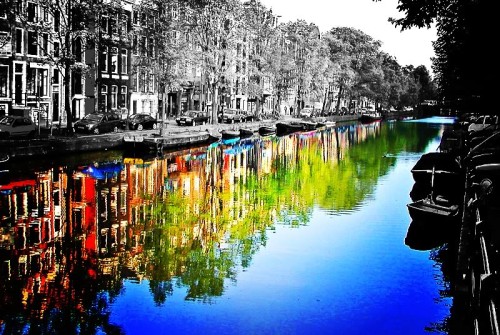
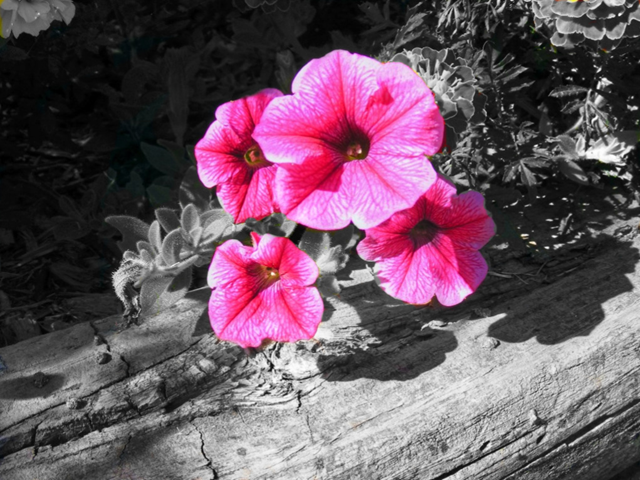
This tutorial will show you how to make a black and white photo with a "splash" of color in it. This technique can be used for modeling competition entries and other types of edits. Here are some examples of the color splash effect:


For this tutorial, I will be using this photo of one of my models, Dana. If you would like to use this photo for experimentation, you can find it here.


First, Open your photo in GIMP.


Next, Duplicate the layer by right clicking on the layer in the palette and choose "Duplicate Layer".

Now you are going to make your new layer black and white. To do this, go up to the "Colors" menu and then choose "Desaturate"


Now here is where you can choose your method. One method is to take an eraser and erase over the areas that you want colored. The other method, which I am going to use is called a "layer mask".

To add a layer mask, make sure your black and white layer is selected, right click the layer and choose "Add Layer Mask". A box will pop up. There are many different options. For this tutorial, I chose the first option, "White (full opacity)". After that is done, you will see a blank layer attached to your black and white layer. Layer masks are used for many purposes and are good for blending images together. When you paint with black on a layer mask, it will hide the part of the image that it is attached to (like an eraser but is easier to correct if you mess up). When you paint with white on a layer mask, it will show areas that were hidden when the black was used.


Now, to get the color splash effect, click on the paintbrush tool. Choose the desired size brush, depending on the size of your photo and adjust the hardness of the brush. The higher the hardness is, the sharper the edge of the brush will be. For this particular effect, I am going to choose a plain round brush.

With your layer mask selected, paint with black (#000000) over the areas that you want colored. As explained previously, the black simply hides those areas. Zoom in or out when needed.  For this photo, I want her dress, lips and eyes to be in color so I painted over those areas.


If you erase too much, like I did below, go back over the area that was mistakenly colored with white (#ffffff). If you were to use an eraser instead of a layer mask, it is more difficult to correct these mistakes.

After all is said and done, your finished product should look like this.


And there you have it. If you have any questions, don't be afraid to ask :)

Color Splash (Photoshop)

This tutorial will show you how to make a black and white photo with a "splash" of color in it. This technique can be used for modeling competition entries and other types of edits. Here are some examples of the color splash effect:


For this tutorial, I will be using this photo of one of my models, Dana. If you would like to use this photo for experimentation, you can find it here.


First, Open your photo in Photoshop.


Next, Duplicate the layer by right clicking on the layer in the palette and choose "Duplicate Layer". You could also duplicate the layer by going to the "Image" menu and choosing "Duplicate".


Now you are going to make your new layer black and white. To do this, go up to the "Image" menu then choose "Adjustments" and then choose "Desaturate" or you could use the keyboard shortcut by pressing Shift+Control+U.


Now here is where you can choose your method. One method is to take an eraser and erase over the areas that you want colored. The other method, which I am going to use is called a "layer mask".

To add a layer mask, make sure your black and white layer is selected and click the icon at the bottom of the layers palette that looks like a grey rectangle with a white circle in the center (shown below). After that is done, you will see another blank layer attached to your black and white layer. Layer masks are used for many purposes and are good for blending images together. When you paint with black on a layer mask, it will hide the part of the image that it is attached to (like an eraser but is easier to correct if you mess up). When you paint with white on a layer mask, it will show areas that were hidden when the black was used.


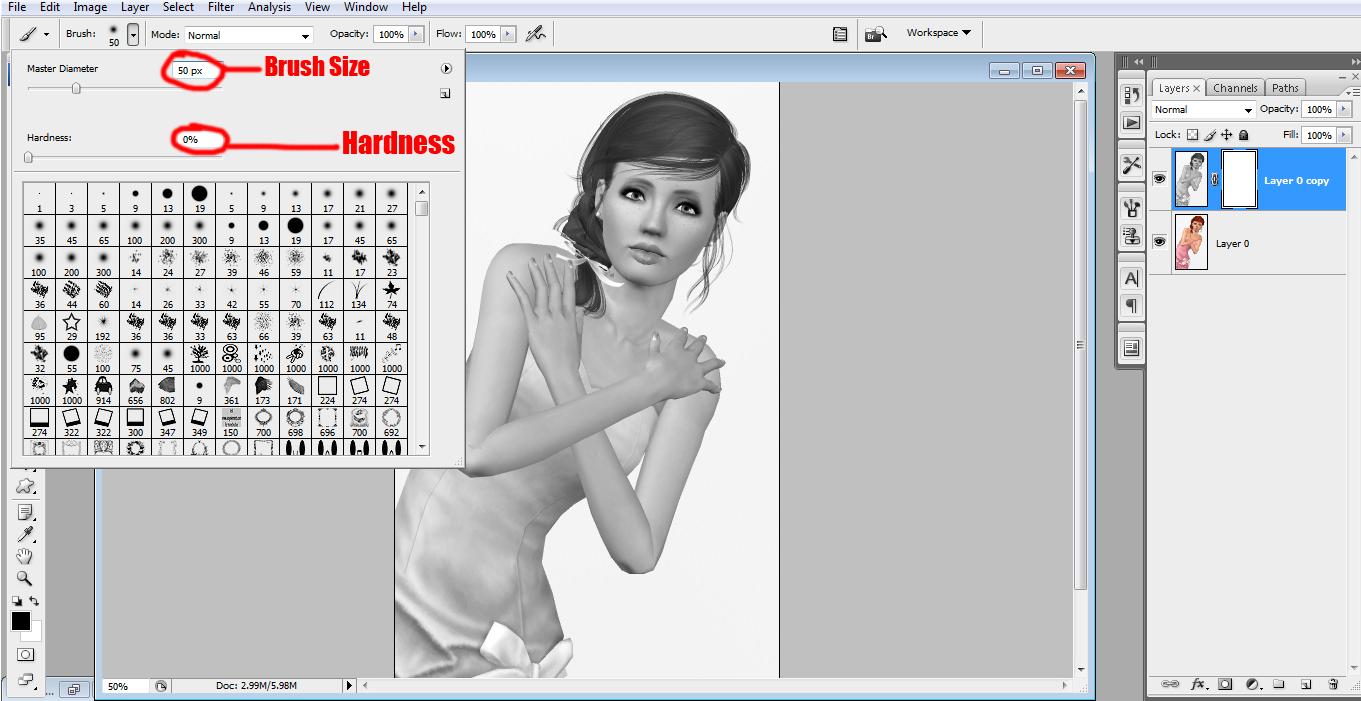
Now, to get the color splash effect, click on the paintbrush tool. Choose the desired size brush, depending on the size of your photo and adjust the hardness of the brush. The higher the hardness is, the sharper the edge of the brush will be. For this particular effect, I am going to choose a plain round brush with the size set at 50 and the hardness set at 0.


With your layer mask selected, paint with black (#000000) over the areas that you want colored. As explained previously, the black simply hides those areas. Zoom in or out when needed (Shortcut is Control +  or Control -).  For this photo, I want her dress, lips and eyes to be in color so I painted over those areas.


If you erase too much, like I did below, go back over the area that was mistakenly colored with white (#ffffff). If you were to use an eraser instead of a layer mask, it is more difficult to correct these mistakes.


After all is said and done, your finished product should look like this.


And there you have it. If you have any questions, don't be afraid to ask :)

Thursday, July 26, 2012

New Tutorials

I'm so sorry for not updating in a while. I've been really busy with real life stuff and wasn't very motivated to make more tutorials. I FINALLY put up new tutorials for animation. Enjoy!


My next tutorials will probably be how to do the color splash effect with photos and how to use blending modes :)

Animation Types Part 3: Flashing & Color change

This is the tutorial on the third and fourths types of animation in Photoshop. This will focus on how to make objects flash (Part A) and change color (Part B). It is recommended that you view my previous animation tutorials before viewing this one. 

Part A: Flashing

I am starting out with a plain white document (size 600x100) with a black heart in the center. 


Now make two more slides by clicking the new slide icon. On the second slide, hide the heart by clicking the eye icon in the layers palette. Leave the third slide as is.


Adjust the time for each slide. I am going to use .5 seconds per slide.

Select the first 2 slides by holding control and clicking both of the slides. Use the "tween" button like in previous tutorials. Leave settings on default and click "Ok". 


Now you will see that there are five more slides added to the palette between the selected slides. I changed the time of the new slides to 0.2 seconds; you can adjust it to your liking. The shorter the time, the faster the animation.


Do the same thing with the last two slides. Once again, I changed the time to 0.2 seconds for the new slides.


When you press play, the heart should fade out and then back in, giving it a "flashing" effect. This is what it should look like:


Part B: Color Change

Starting out with the same black heart as above, make one new slide.


One this new slide, click the layer styles icon (shown below) and choose "Blending Options".
From the box that pops up, click on the area that says "Color Overlay".


Now, choose a color that you'd like the heart to change to. If you want to change the color of something with more details, you might want to choose a different blending mode like "Multiply", "Color" or "Overlay" from the drop down box in that section. For the purpose of this tutorial, I am going to keep it at red and on "Normal". Click "Ok".


You should now see that the second slide has a red heart instead of a black one. Select both slides and use the "tween" option like before. Adjust the time intervals to your liking. I chose one second for the two original slides and 0.2 seconds for the new slides.


Press "Play" and the black heart should transition into a red one. You can repeat this same process with more layers and colors if you choose.